Set up & use
Getting started
Set up RollCast and print your first slip in a few minutes.
RollCast lets this phone print on a small receipt printer. You set it up once. After that you can print from Chrome, from your photos, and from shop apps.
You will need
Your receipt printer, switched on, with paper inside. Keep it close to the phone.
Step 1: Allow RollCast
- 1Open RollCast.
- 2Find the "Setup" box at the top.
- 3Tap "Grant permissions".
- 4Tap "Allow" on each question.
Tip
When everything is allowed, the "Grant permissions" button goes away. That is normal.
Step 1b: Allow background printing
- 1In the "Setup" box, tap "Allow background printing".
- 2Tap "Allow". If a settings page opens instead, tap "Battery", then "Unrestricted".
- 3Go back to RollCast. The button disappears when it worked.
Note
Skip this and some phones (for example Samsung) hold print jobs until you open RollCast.
Step 2: Turn on RollCast printing
- 1Tap "Enable print service".
- 2In the list, tap "RollCast".
- 3Turn the switch on.
- 4Tap Back to return to RollCast.
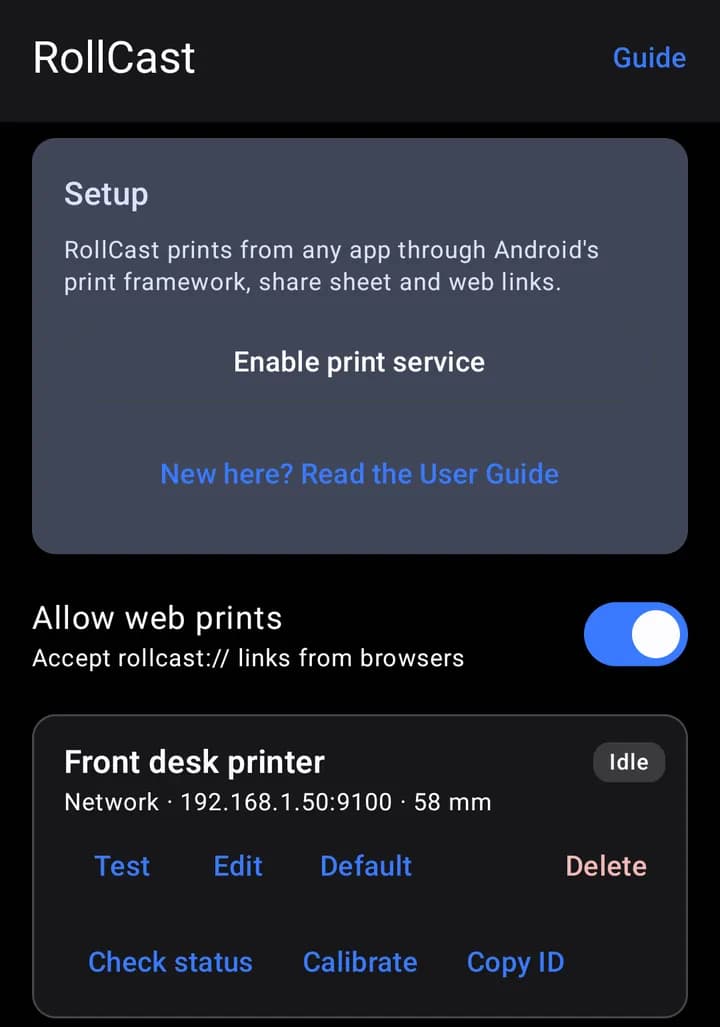
Step 3: Add your printer
- 1Tap "Add printer".
- 2Pick how your printer connects: "BT" (Bluetooth), "USB" (cable) or "TCP" (Wi-Fi or network cable).
- 3Choose your printer.
- 4Pick your "Paper width": 58 mm or 80 mm.
- 5Tap "Save".
Tip
Not sure how to connect? Read the Bluetooth, USB or Network page in this guide.
Tip
No printer with you? Add a Virtual printer — see "Virtual printer".
Step 4: Print a test
- 1Find your printer on the main screen.
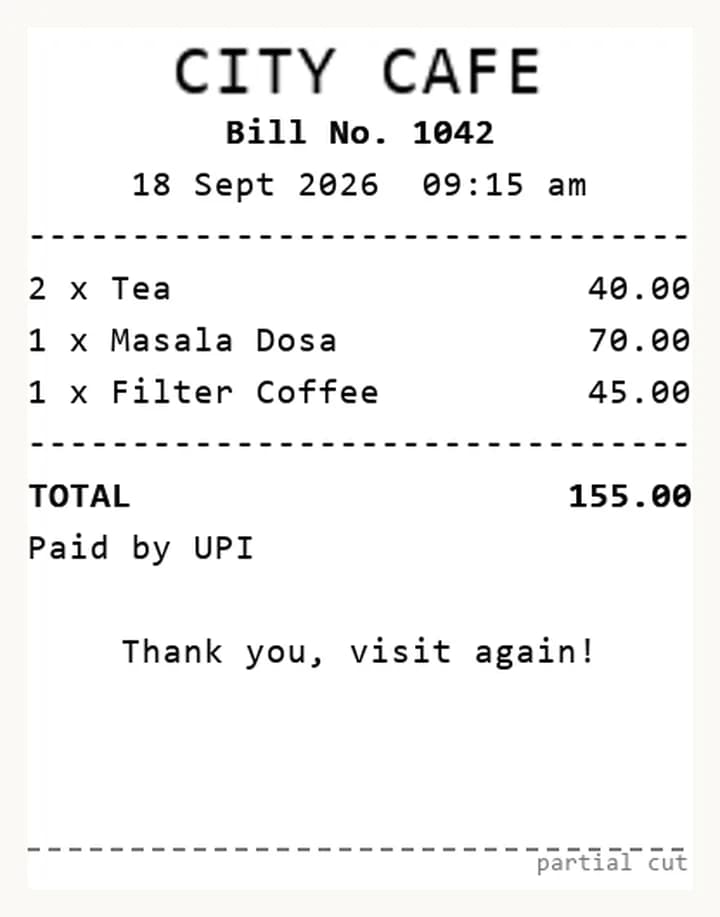
- 2Tap "Test".
- 3Check the slip that comes out.
Tip
If you have more than one printer, tap "Default" on the one you use most.