Set up & use
Virtual printer (no printer needed)
Save receipts inside RollCast now, and print or share them later.
A virtual printer lives inside RollCast. Nothing comes out on paper. Each print is saved as a receipt that you can look at, share or print later.
When to use it
Use it when your printer is not with you, when your printer is broken, or when you want to try RollCast before you buy a printer.
Add a virtual printer
There are two ways. Use either one.
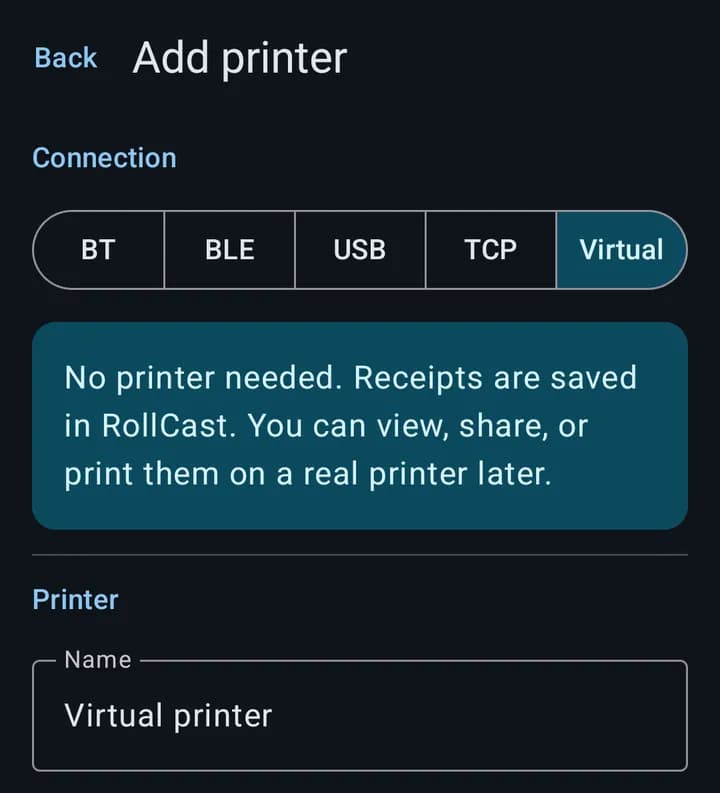
- 1No printers yet? On the main screen, tap "Add a virtual printer (no printer needed)".
- 2Or tap "Add printer", then tap "Virtual".
- 3Pick your "Paper width": 58 mm or 80 mm.
- 4Tap "Save".
Tip
Pick the same paper width as the real printer you will use later. Then printed copies look exactly the same.
Print to it
You print to it just like a real printer:
- 1Tap "Test" on the virtual printer's card to save a test receipt.
- 2In Chrome, tap ⋮, then "Share", then "Print". Pick the virtual printer at the top.
- 3To use "Share" and then "RollCast", first tap "Default" on the virtual printer.
Find your receipts
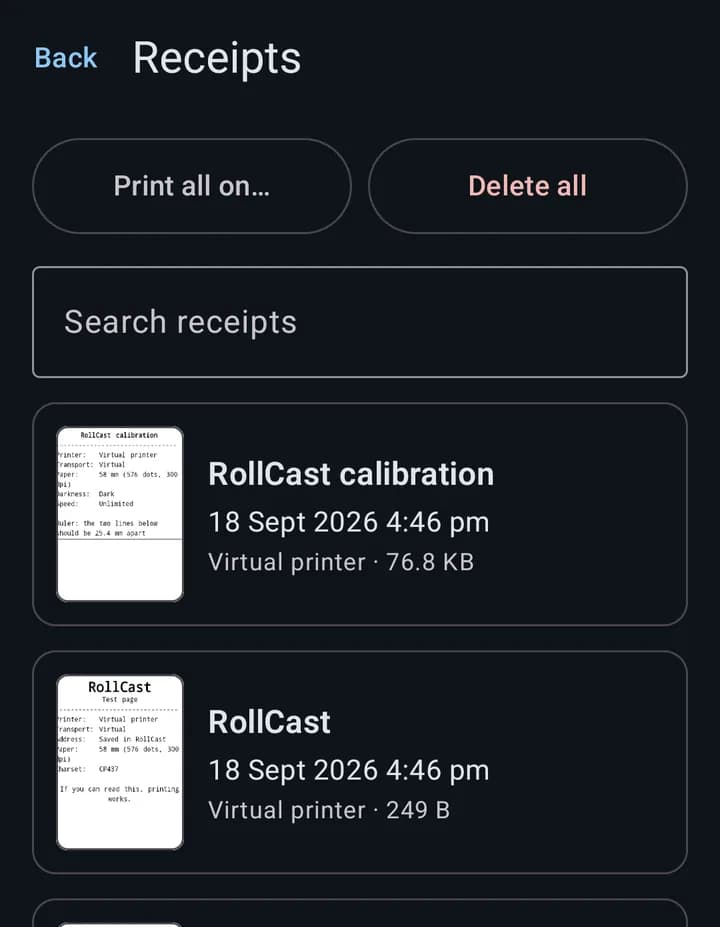
- 1Tap "Receipts" on the virtual printer's card, or "Receipts" at the top of the main screen.
- 2Type in the search box to find a receipt.
- 3Tap a receipt to open it.
What you can do with a receipt
| Button | What it does |
|---|---|
| Tap the picture | Zooms in so you can read small text. |
| Share PDF | Sends the receipt as a PDF, for example on WhatsApp or email. |
| Share image | Sends the receipt as a picture, for example on WhatsApp. |
| Save PDF to Downloads | Keeps a copy in the phone's Downloads folder. |
| Print on… | Prints it on a real printer. A printer with the same paper width prints an exact copy. |
| Delete | Removes this receipt. |
Tip
On the "Receipts" screen, "Print all on…" prints every saved receipt on a real printer once it is back.
Keep or delete receipts
Receipts stay until you delete them. To clean up by itself:
- 1Tap "Edit" on the virtual printer.
- 2Under "Keep saved receipts", pick 7, 30 or 90 days.
- 3Tap "Save".
To delete now, tap "Delete" on one receipt, or "Delete all" on the "Receipts" screen.
Note
Receipts can contain customer names and phone numbers. They stay inside RollCast until you share or delete them. Delete the ones you no longer need.