Set up & use
Troubleshooting
Quick fixes for the most common problems.
Find your problem on the left. Try the fix on the right.
| Problem | Fix |
|---|---|
| A job only prints after you open RollCast | The phone is freezing RollCast in the background. Open RollCast and tap "Allow background printing" in the Setup box. If the button is not there, open Settings > Apps > RollCast > Battery and choose "Unrestricted". |
| Right side of the slip is cut off, or text wraps too early | Tap "Edit". Lower "Print area (dots)" if the right side is cut off. Raise it if the text stops too early. Tap "Long test" and check the ruler reaches the edge. |
| Pictures print as symbols or garbage | Tap "Edit". Under "Image printing", pick another option and tap "Test image". |
| Telugu, Hindi or other letters print as ? or boxes | Tap "Edit". Under "Text & language", pick "Print text as image". Or pick a UTF-8 option if your printer supports it. Tap "Print language sample" to check. |
| Last line is cut through, or too much blank paper after the cut | Tap "Edit". Raise or lower "Lines to feed before cut". |
| Printer doesn't cut | Tap "Edit". Try another "Cut type". If your printer has no cutter, turn off "Auto cut". |
| Your supplier says to send a special command | Tap "Edit" and open "Terminal". Type the code as pairs, for example 1B 40. |
| Paper out or cover open | Load paper and close the cover. The print waits and comes out by itself. |
| Print is faint or grey | Tap "Edit", set "Print darkness" to "Dark", tap "Save". Check the paper's shiny side faces the print head. |
| Print is garbled or the end is cut off | Tap "Edit", set "Transfer speed" to "Safe", tap "Save". |
| "This printer isn't available right now" | Switch the printer on, move closer, and check it has paper. |
| "Bluetooth is off" | Turn Bluetooth on. Waiting prints start by themselves. |
| "Allow Nearby devices for RollCast" | Tap the message, then allow "Nearby devices". Or tap "Grant permissions" in RollCast. |
| "No printer configured" | Open RollCast and add a printer. Then tap "Default" on it. |
| A shop website or app does nothing when you tap print | Turn on "Allow web prints" on the RollCast main screen. |
| It prints on the wrong printer | In RollCast, tap "Default" on the right printer. In Chrome, pick the printer again at the top of the print screen. |
| Two similar printers in Chrome | Tap "Enable print service" and turn off other printing apps (for example RawBT). |
| Letters with accents print wrong | Tap "Edit" and change "Text charset". Ask your supplier which one the printer uses. |
| I don't have my printer right now | Use the Virtual printer. Receipts are saved and you can print them later. |
| A receipt looks different when printed on another printer | Printers with a different paper width get a scaled copy. Use a printer with the same width for an exact copy. |
Check the printer
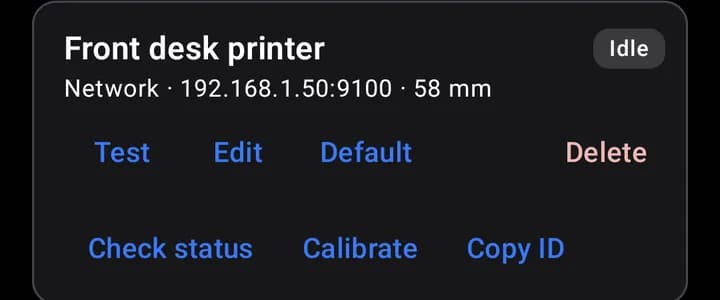
Tap "Check status" on the printer's card. It tells you if the paper is out or the cover is open.
Print a calibration page
This page helps you pick the best settings.
- 1Tap "Calibrate" on the printer's card.
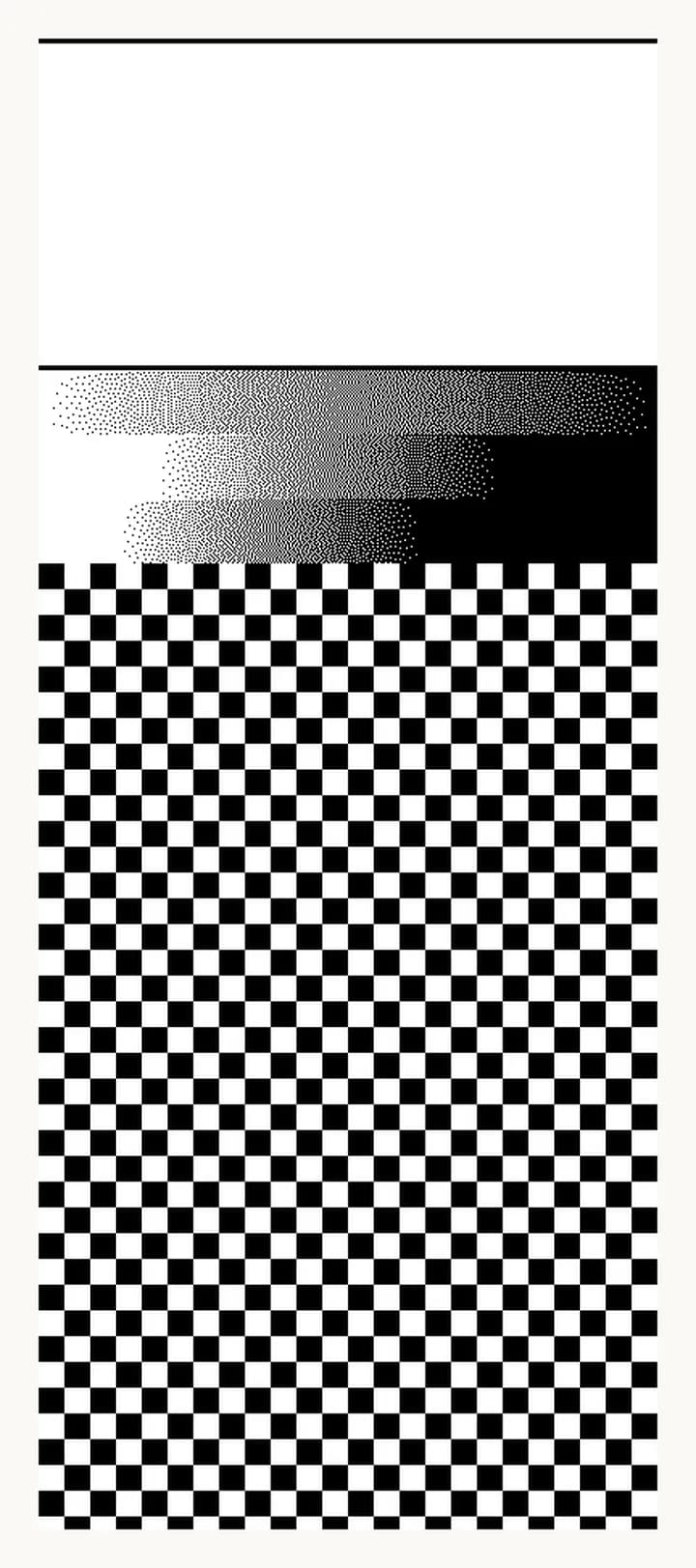
- 2Look at the two lines under "Ruler". Measure them. They should be 25.4 mm (1 inch) apart.
- 3Look at the three strips: Light, Normal, Dark.
- 4Pick the strip that looks best.
- 5Tap "Edit" and set "Print darkness" to match.
- 6Look at the checkered block under "Speed test".
- 7If the block is broken or the text after it is missing, set "Transfer speed" to "Safe".
- 8Tap "Save".
Tip
If the ruler lines are not 25.4 mm apart, your printer may not be a standard 203 dpi model. Tap "Edit" and check "DPI".
Note
Still stuck? Switch the printer off and on, close RollCast, and try again.