Set up & use
Bluetooth printer
Pair the printer with the phone, then add it in RollCast.
First you connect (pair) the printer with the phone. Then you add it in RollCast.
Part 1: Pair the printer
- 1Switch the printer on.
- 2Tap "Open Bluetooth settings" below.
- 3Make sure Bluetooth is on.
- 4Tap "Pair new device".
- 5Wait for your printer's name to show up.
- 6Tap your printer's name.
- 7If the phone asks for a PIN, type 0000.
- 8If 0000 does not work, try 1234.
- 9Tap Back to return to RollCast.
Tip
The printer's name is often printed on its label, for example "MTP-II" or "Printer001".
Part 2: Add it in RollCast
- 1Tap "Add printer".
- 2Tap the "BT" tab.
- 3Tap your printer in the list.
- 4Pick your "Paper width".
- 5Tap "Save".
- 6Tap "Test" on the new printer.
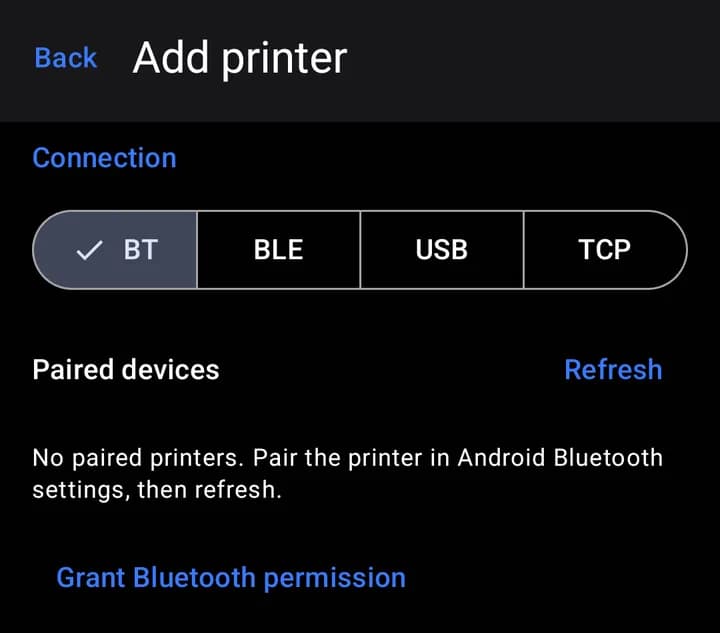
Tip
Is the list empty? Tap "Refresh". Still empty? Tap "Grant Bluetooth permission" and tap "Allow".
What about the BLE tab?
Only use "BLE" if your printer never shows up in the phone's Bluetooth settings. A few small printers only work this way.
- 1Tap the "BLE" tab.
- 2Tap "Scan".
- 3Tap your printer when it shows up.
- 4Tap "Save".
If it does not work
| Problem | What to do |
|---|---|
| Printer is not in the list | Pair it first (Part 1). Then tap "Refresh". |
| The phone asks for a PIN | Try 0000, then 1234. Still stuck? Look in the printer's manual. |
| "Bluetooth is off" | Turn Bluetooth on. Waiting prints will start by themselves. |
| "Printer unreachable" | Switch the printer on and move closer. RollCast tries again by itself. |
| Test slip is cut off or has strange marks | Tap "Edit", set "Transfer speed" to "Safe", then tap "Save". |
| It worked before, now it doesn't | Switch the printer off and on. Then tap "Test" again. |
Note
A Bluetooth printer can only talk to one phone at a time. Switch Bluetooth off on other phones nearby if printing fails.