Set up & use
USB printer
Plug the printer into the phone with a cable and adapter.
You need an OTG adapter. It is a small plug that lets a normal USB printer cable go into your phone's charging port. Most phones need a USB-C one.
Connect the printer
- 1Switch the printer on.
- 2Plug the OTG adapter into the phone.
- 3Plug the printer cable into the adapter.
- 4If the phone asks "Allow RollCast to access…", tap "OK" or "Allow".
Add it in RollCast
- 1Open RollCast.
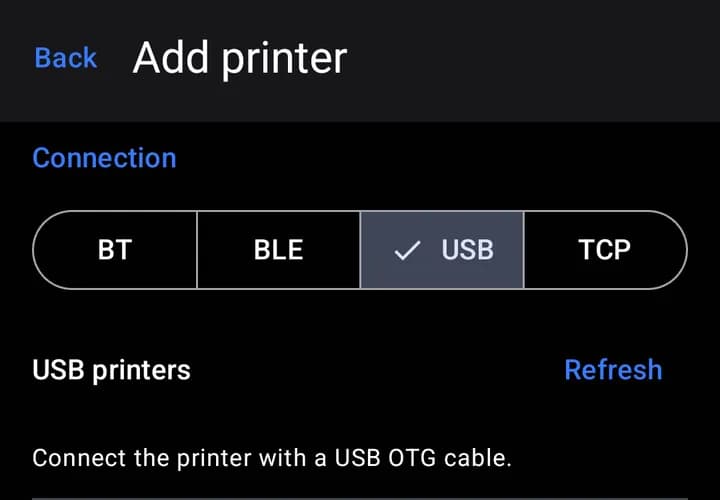
- 2Tap "Add printer".
- 3Tap the "USB" tab.
- 4If you see "Grant USB access", tap it.
- 5Tap "OK" or "Allow" on the question that pops up.
- 6Tap your printer in the list.
- 7Pick your "Paper width".
- 8Tap "Save".
- 9Tap "Test" on the new printer.
Tip
Nothing in the list? Unplug the cable, plug it back in, then tap "Refresh".
Tip
Some phones have an "OTG" switch in Settings. Turn it on if the printer is not found.
Tip
The printer needs its own power. The phone cannot power it.
Note
If you unplug the printer, the phone may ask for permission again next time. Just tap "Allow".