Set up & use
Network printer
Print to a Wi-Fi or network-cable printer using its address.
To use a network printer, RollCast needs the printer's address (its IP address).
Part 1: Find the printer's address
- 1Switch the printer off.
- 2Press and hold the FEED button.
- 3Keep holding it and switch the printer on.
- 4Let go when the printer starts printing.
- 5On the slip, find "IP address". It looks like 192.168.1.87.
- 6Keep this slip.
Note
Some printers use a different button. If nothing prints, check the printer's manual for "self-test page".
Part 2: Check the Wi-Fi
- 1Tap "Open Wi-Fi settings" below.
- 2Connect the phone to the same Wi-Fi as the printer.
- 3Tap Back to return to RollCast.
Part 3: Add it in RollCast
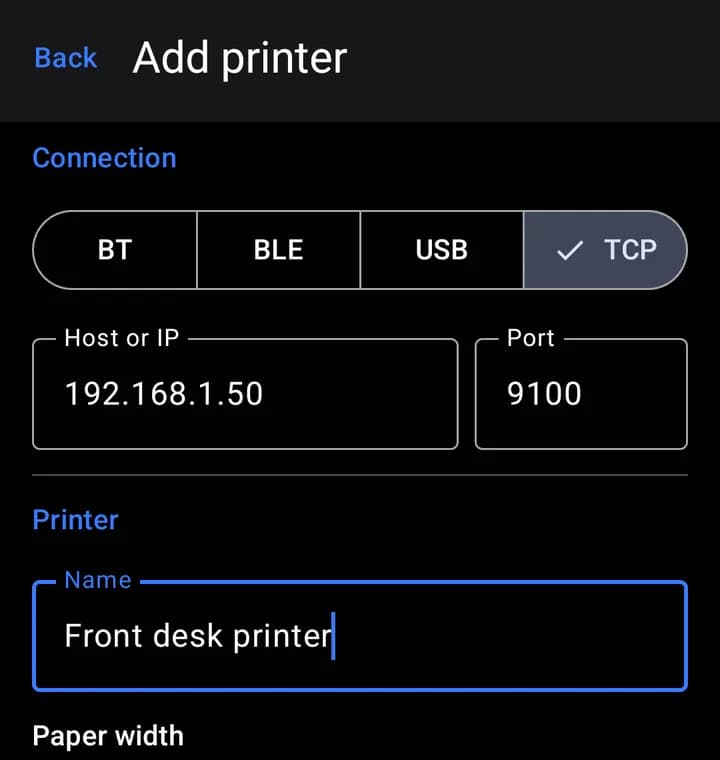
- 1Tap "Add printer".
- 2Tap the "TCP" tab.
- 3In "Host or IP", type the address from the slip.
- 4Leave "Port" as 9100.
- 5Type a "Name", for example "Kitchen printer".
- 6Pick your "Paper width".
- 7Tap "Save".
- 8Tap "Test" on the new printer.
Tip
Nothing prints until you close RollCast or wait a while? Tap "Edit", turn on "Close after job", then tap "Save". Some printers need this.
Tip
Printing stopped one day? The printer's address may have changed. Print a new self-test slip and update the address. Your IT person can give the printer an address that never changes.