Set up & use
Printer settings explained
What each setting does, and when to change it.
The default settings work for most printers. Only change one if you have a problem.
Change a setting
- 1Find your printer on the main screen.
- 2Tap "Edit".
- 3Change the setting.
- 4Tap "Save".
- 5Tap "Test" to check.
| Setting | What it does / when to change it |
|---|---|
| Paper width | 58 mm or 80 mm. Must match your paper roll. Measure the paper if you are not sure. |
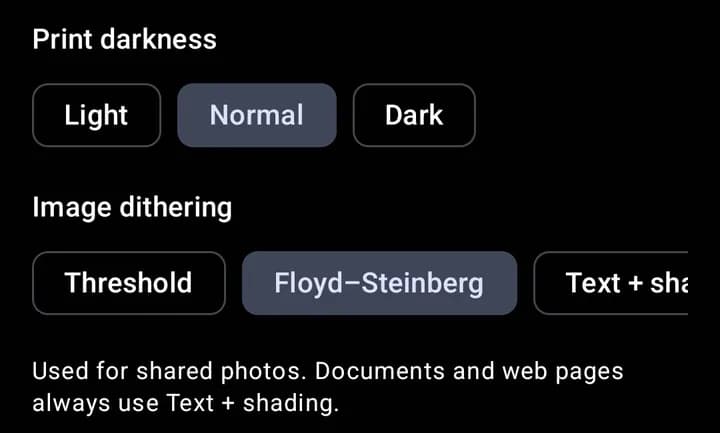
| Print darkness | Light, Normal or Dark. Choose Dark if prints look faint. Choose Light if text looks smudged. |
| Image dithering | How photos are turned into dots. Floyd–Steinberg is best for photos. Threshold is sharper for logos and QR codes. Web pages and documents always use Text + shading. |
| Text charset | Which letters the printer knows. Only change it if accents or symbols print wrong (for example CP437, CP866, windows-1252). |
| Auto cut | Cuts the paper after each print. Turn it off if your printer has no cutter. |
| Close after job | Network printers only. Turn it on if the printer only prints after RollCast disconnects. |
| Keep connection open | How long RollCast stays connected after printing (30 s, 5 min, 30 min). Longer means faster prints one after another. Shorter if other phones use the same printer. |
| Transfer speed | Bluetooth only. Safe, Normal, Fast or Unlimited. Choose Safe if the end of a print is missing or garbled. |
| Compact blank space | On by default. Makes prints faster. Turn it off only if lines overlap or are in the wrong place. |
| DPI | How sharp the print head is. Most printers are "203 dpi (1 mm = 8 dots)". Pick "300 dpi (1 mm = 12 dots)" only if the printer's label or box says 300 dpi. |
| Print area (dots) | How wide the printed part of the slip is, in dots. Usually 384 for 58 mm paper and 576 for 80 mm. Change it if the right side is cut off or the text stops too early. Tap "Calculate" to fill it in from the paper width. |
| Image printing | How pictures and web pages are sent to the printer. Keep the first option. If pictures come out as symbols or garbage, try another one and tap "Test image". |
| Text & language | How letters are sent. Keep "Standard" for English. For Telugu, Hindi or other languages, pick "Print text as image". It works on every printer. Tap "Print language sample" to check. |
| Lines to feed before cut | How much paper comes out before the cut. Raise it if the last line is cut through. Lower it if there is too much blank paper. |
| Cut type | Which cut command is sent. Try another one if the printer does not cut. Only used when "Auto cut" is on. |
| Test prints | "Short text" prints a few lines. "Long test" prints a ruler across the full width, so you can check the print area. |
| Terminal | For experts. Sends codes straight to the printer, typed as pairs like 1B 40. Only use it if your supplier gives you a code to send. |
| Allow web prints | On the main screen. Lets websites and shop apps print with one tap. Off by default. Turn it on only if your shop system needs it. |
Tip
Change one setting at a time, then tap "Test". That way you know what helped.
Tip
Setting up a new printer? Read "Fine-tune your printer" next.