Set up & use
Share photos, PDFs and text
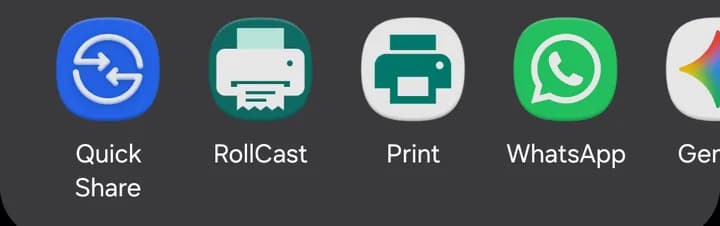
Send a photo, PDF or text to RollCast from the Share menu.
You can print photos, PDF files and text straight from the Share menu.
Print a photo or PDF
- 1Open the photo or PDF (in Photos, Gallery, Files or Drive).
- 2Tap "Share".
- 3Tap "RollCast". You may need to scroll or tap "More".
- 4Wait for the message "Sent to printer".
Print text
- 1Select the text you want (press and hold on it).
- 2Tap "Share".
- 3Tap "RollCast".
Which printer is used?
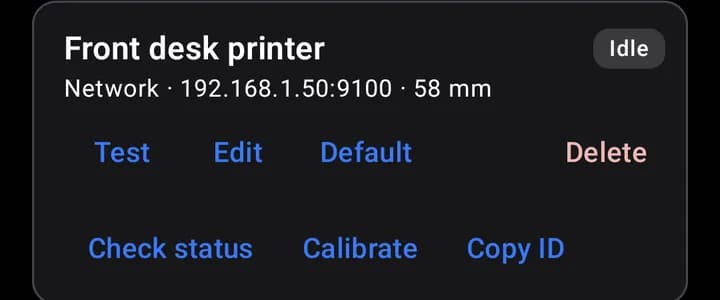
Shared items go to your default printer.
- 1Open RollCast.
- 2Find the printer you use most.
- 3Tap "Default" on its card.
Tip
The printer that is already the default shows a "Default" label and no "Default" button.
Try it now
Note
Very long PDFs take a while and use a lot of paper. Each file can be up to 20 MB, and up to 32 photos at once.