

Pocket CRM
All your CRMs in one inbox, on your team's phones
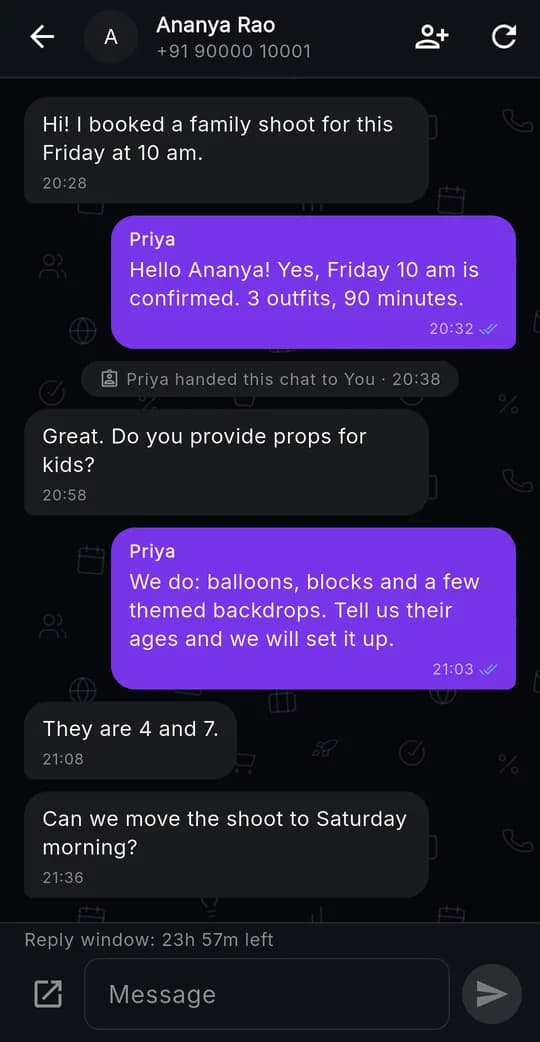
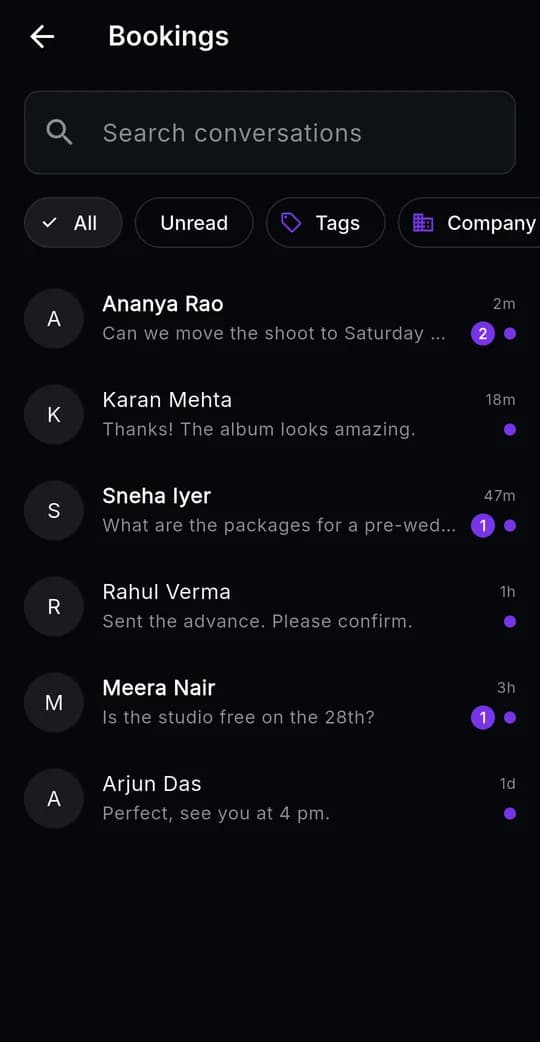
Pocket CRM is an Android app from SVB Tech Labs that brings all of a business's CRMs into one inbox on the team's phones. Today it connects WhatsApp CRMs, as many as a business runs. When a customer writes, the team member handling that chat gets a push alert, reads the full conversation and replies from the phone. Each department sees only its own chats and the unassigned ones, chats can be handed to another department in two taps, and every reply and handoff shows who did it.
Free on Google Play · Android 7.0+
At a glance
Pocket CRM, in short.
- What it is
- One mobile inbox for all of a business's CRMs
- Connects today
- WhatsApp CRMs on the WhatsApp Business Platform (Cloud API), as many as you run
- Platform
- Android 7.0 and later
- Price
- Free to download
- Status
- Live on Google Play (v1.0)
- Works with
- WhatsApp CRM workspaces set up by SVB Tech Labs
- Built for
- Businesses with several teams, brands or numbers to answer from one app
- Developer
- SVB Tech Labs, Hyderabad, India
- Hosting
- Google Cloud, Mumbai region (India)
Inside the app
Real screens. Swipe through the app as it ships today.
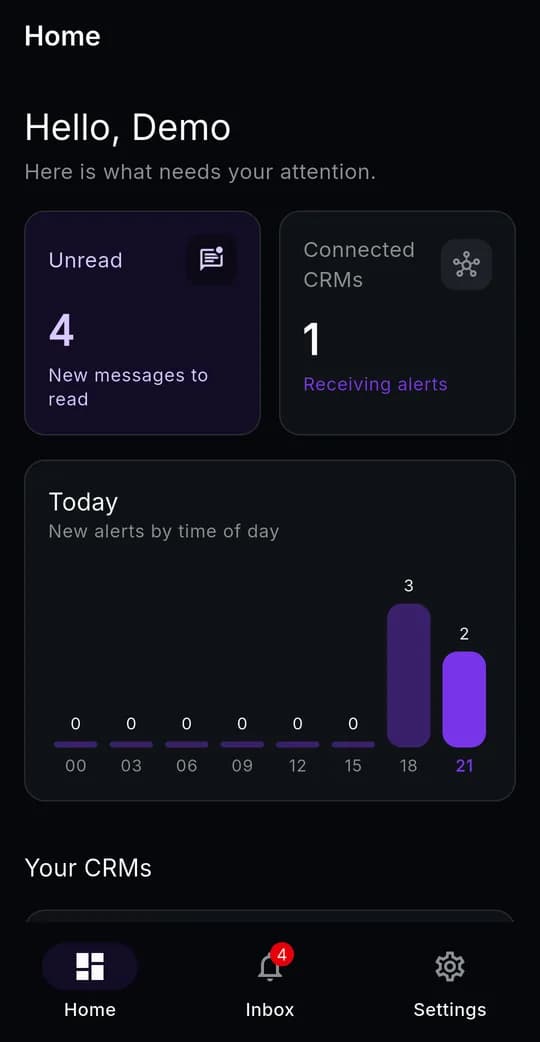
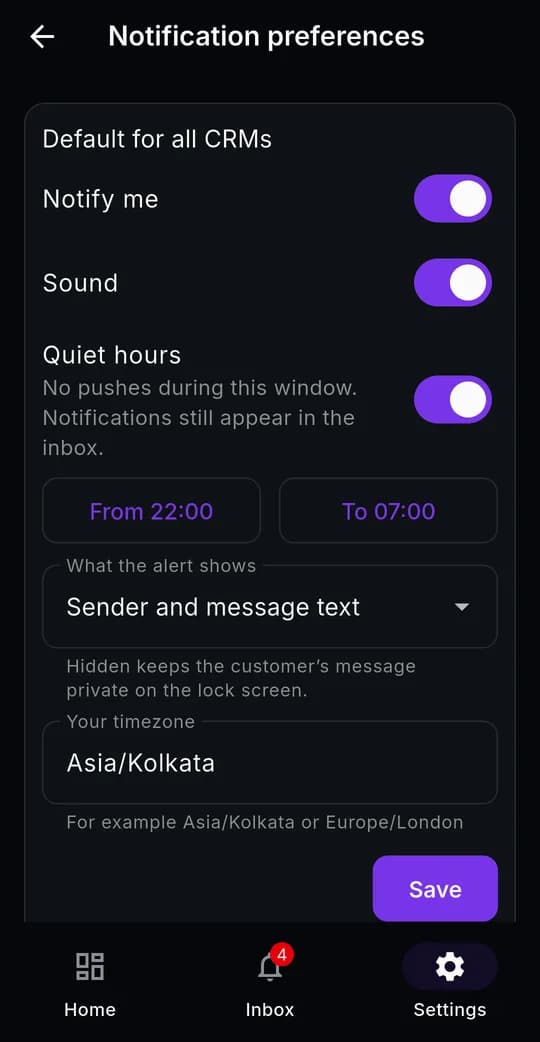
Screens use a demo business with made-up names and numbers.
Why Pocket CRM
Every CRM, every team — one inbox, without the chaos
Too many inboxes to watch
A business with several brands, branches or numbers ends up with a CRM for each, and a browser tab for each. Messages wait in the one nobody is looking at.
One number, many people
Sales, support and every department share one WhatsApp number. On a single phone or a shared web inbox, everyone sees everything and nobody owns anything.
Missed and double replies
A customer waits because each person assumes someone else is answering. Or two people answer at once and contradict each other.
The desk is not where work happens
Field staff, studio crews and teachers are rarely at a computer. A CRM that only lives in a browser tab means messages wait until someone sits down.
How it works
Set up Pocket CRM for your team in five steps
Step 01
Connect your CRMs
An owner or admin creates the business in Pocket CRM and connects each CRM with its address and an API key — one per brand, branch or number. Pocket CRM checks each key's permissions and subscribes to the CRM's events automatically.
Step 02
Invite your team
Invite each team member by email as an Owner, Admin or Agent. They set their own password when they accept the invitation.
Step 03
Link each person to their CRM user
For each CRM, pick each person from that CRM's team list. The link decides which chats they see, which alerts they get and whose name appears on their replies.
Step 04
Route chats to departments
In the CRM, add an automation per department, for example: when the tag "New Studio" is added, assign the chat to the Studio lead. New customers then reach the right person without anyone assigning them.
Step 05
Work every CRM from one inbox
Alerts from every CRM arrive in one inbox. The person a chat belongs to reads the conversation and replies from their phone, or hands it to another department in two taps. Filter by CRM to focus on one.
Features
Everything your team needs to answer customers from every CRM
All your CRMs in one inbox
Connect as many CRMs as you run
One per brand, branch or number. Each keeps its own team, chats and settings.
One alert inbox
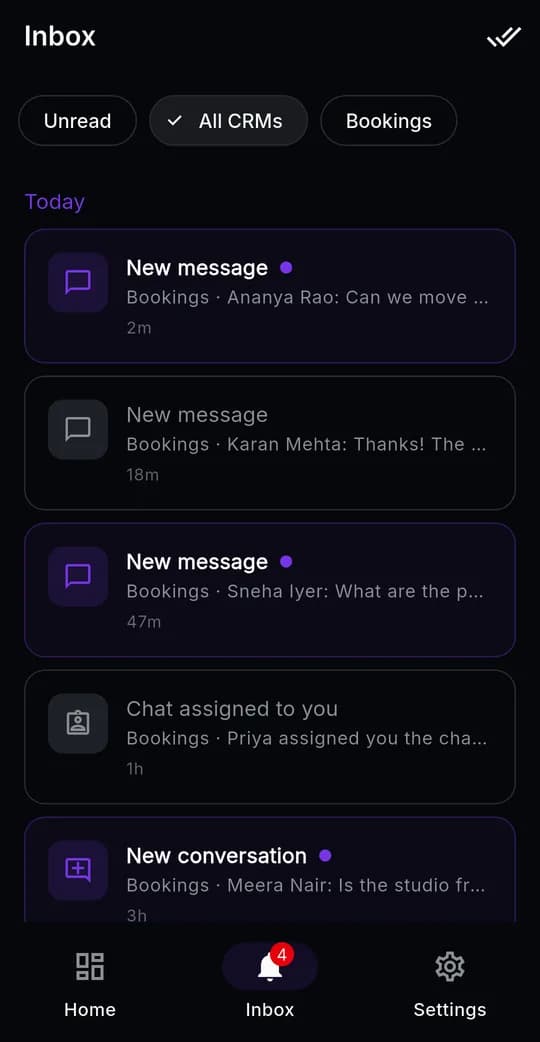
Alerts from every CRM land in one list, labelled with the CRM they came from.
Filter by CRM
Switch between All CRMs and a single one in a tap, with unread counts for each.
Health check per CRM
See at a glance which CRMs are connected and receiving messages, and which need attention.
Alerts that reach the right person
Assigned chats alert their owner
A message in a chat assigned to someone goes to that person (and the business owners), not to the whole team.
Unassigned chats reach the team
Choose per CRM whether new, unassigned chats alert every agent, only owners and admins, or nobody.
Handoff alerts
When a chat is handed to you, you get "Priya assigned you the chat with Ananya" straight away.
Quiet hours
Pick a window, such as 22:00 to 07:00, with no push sound or banner. Alerts still collect in the in-app inbox.
Lock-screen privacy
Choose what an alert shows: nothing, the sender's name only, or the sender and the message text.
Per-CRM settings
Set a default for all CRMs and override it for any single CRM.
Full conversations on your phone
The whole chat, as in the CRM
Text, photos, videos, voice notes and documents, quoted replies, template messages and button replies.
Delivery ticks
Sent, delivered, read and failed, for every message your team sends.
Live while open
An open chat refreshes on its own, so new messages and ticks appear without reopening it.
Search and filters
Find a chat by name or number, or filter by unread, tag and company.
Replying the WhatsApp way
Text replies from anywhere
Reply to a customer from your phone. The reply goes out through the business's WhatsApp number, not your personal one.
24-hour window countdown
WhatsApp allows free-form replies for 24 hours after the customer's last message. Pocket CRM shows the time left and stops a reply that would fail.
Templates in one tap
When the window has closed, Pocket CRM opens the chat in the CRM to send an approved template.
Who replied
Every reply carries the name of the team member who sent it, in the app and in the CRM's web inbox.
Departments and handoffs
Each agent sees their own chats
Agents see the chats assigned to them plus unassigned ones. Owners and admins see every chat. The rule is enforced by the CRM's database, not just hidden on screen.
Claim on reply
When an agent replies to an unassigned chat, it becomes theirs, so two people never answer the same customer.
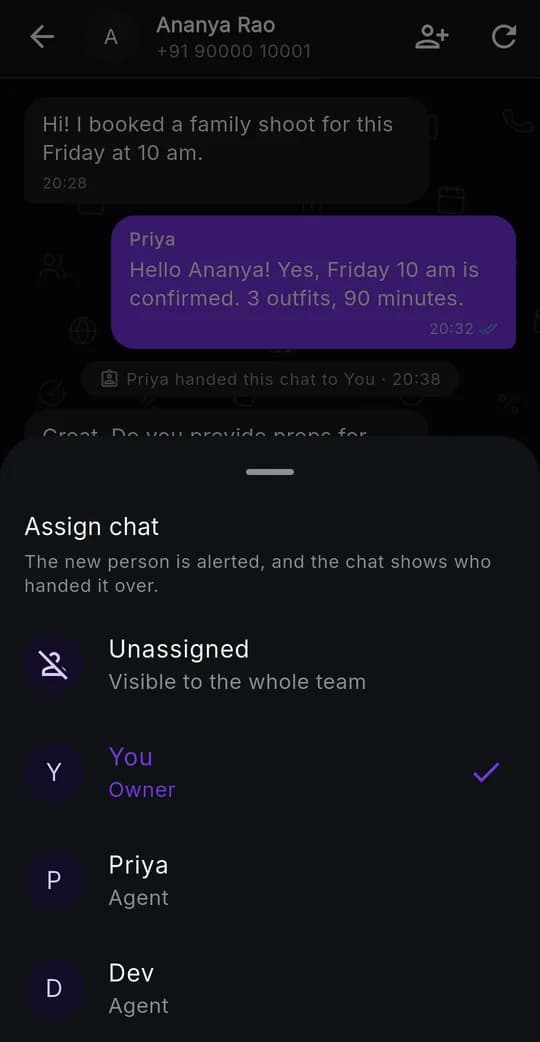
Hand over in two taps
Send a chat to anyone on the team, or back to unassigned. Anyone who can see a chat can move it on.
Handoff history in the chat
"Manas handed this chat to Mehaveen · 16:40" appears between the messages, in the app and in the CRM.
Built for owners and admins
Business setup on the phone
Create the business, connect CRMs, invite people, change roles and remove access, all from the app.
Connection health checks
One tap checks the CRM's API key, its event webhook, and that every linked person is still on the CRM's team.
Team picker
Link people to CRM users by picking from the CRM's own team list, never by typing an ID.
Appearance
Light, dark or system mode and five accent colours, matching the CRM's web inbox.
Security and privacy
The API key never reaches a phone
The CRM's key is encrypted on Pocket CRM's server. Phones only ever talk to that server, over HTTPS.
Signed events
Events from the CRM are signature-checked before they are trusted, and replays are rejected.
Conversations stay in your CRM
Pocket CRM shows chats from the CRM and keeps no copy. Alert text is deleted after 7 days.
Real account deletion
Deleting an account erases the email address, password, devices, alerts and settings straight away.
Who it's for
Built for businesses with several teams, brands or numbers
Studios and agencies
Bookings, production and accounts each own their chats. A shoot enquiry goes to the studio lead; once it is booked, it moves to accounts with a record of the handoff.
Schools and coaching institutes
Admissions answers new enquiries while fees and transport questions reach the right office, and teachers away from a desk still get the parents' messages meant for them.
Clinics and diagnostic centres
The front desk takes new appointments; reports and billing questions are handed to the right team, and every reply shows who sent it.
Real estate and property management
Site visits, documentation and tenant support each have an owner, and agents on site reply from their phones.
Multi-brand and multi-branch businesses
Each brand or branch keeps its own CRM and number, and owners follow all of them from one inbox on one phone.
Retail and D2C brands
Order questions, returns and wholesale enquiries go to different people without customers ever needing a second number.
Service and repair businesses
Technicians in the field receive the chats assigned to them and reply on the spot, while the office keeps sight of every conversation.
Compare
Pocket CRM vs a shared WhatsApp phone vs CRM web inboxes
| Capability | Pocket CRM | WhatsApp Business app on a shared phone | CRM web inboxes only |
|---|---|---|---|
| Several CRMs in one inbox | Yes | No | One tab per CRM |
| Several people on one WhatsApp number | Yes | Limited | Yes |
| Each department sees only its chats | Yes | No | Depends on the CRM |
| Assign and hand over chats, with a record | Yes | No | Depends on the CRM |
| Shows which team member replied | Yes | No | Depends on the CRM |
| Push alerts only for your own chats | Yes | No | No |
| Reply away from a computer | Yes | Yes | No |
Glossary
Team inbox terms, explained
- Unified (multi-CRM) inbox
- One place to see and answer conversations from several CRMs, instead of a separate app or browser tab for each. Pocket CRM is one, on the phone.
- WhatsApp Business Platform (Cloud API)
- Meta's API for businesses to send and receive WhatsApp messages from software, such as a CRM, instead of from one phone. It lets a whole team work on one business number.
- 24-hour customer service window
- After a customer messages a business, the business can reply freely for 24 hours. After that, WhatsApp only allows pre-approved template messages until the customer writes again.
- Template message
- A message the business has submitted to WhatsApp for approval, used to start or restart a conversation outside the 24-hour window.
- Assigned chat
- A conversation that belongs to one team member. In Pocket CRM, that person gets its alerts and agents from other departments cannot see it.
- Unassigned chat
- A conversation nobody owns yet. Every agent can see it, and the first agent to reply takes it over.
- Handoff
- Moving a chat from one team member to another. Pocket CRM alerts the new owner and records who made the handoff and when.
- Claim on reply
- Pocket CRM's rule that an agent replying to an unassigned chat becomes its owner, which prevents two people answering the same customer.
FAQ
Frequently asked questions about Pocket CRM
What is Pocket CRM?
Pocket CRM is an Android app from SVB Tech Labs that brings all of a business's CRMs into one inbox on its team's phones. It alerts the person responsible for a chat when a customer writes, shows the full conversation, lets them reply, and lets anyone hand a chat to another department with a record of who did it.
Which CRMs does Pocket CRM work with?
Today, Pocket CRM connects WhatsApp CRMs built on the WhatsApp Business Platform (Cloud API). Support for more kinds of CRM and messaging channels is planned.
Can I connect more than one CRM?
Yes. A business can connect as many CRMs as it runs, for example one per brand, branch or WhatsApp number. Alerts from all of them arrive in one inbox, and you can filter by CRM.
Is Pocket CRM free?
Yes, Pocket CRM is free to download. It needs at least one CRM workspace to connect to; contact SVB Tech Labs to set one up for your business.
Which phones does Pocket CRM work on?
Android phones running Android 7.0 or later. There is no iPhone version yet.
Do I need the WhatsApp Business app on my phone?
No. Pocket CRM works through the WhatsApp Business Platform (Cloud API) via your CRM, so the business number is not tied to anyone's phone and your personal WhatsApp stays separate.
Can several team members reply from the same WhatsApp number?
Yes. Every team member signs in to Pocket CRM with their own account, and all replies go out from the business's one WhatsApp number, each labelled with the name of the person who sent it.
How do departments work in Pocket CRM?
Each chat can be assigned to one team member. Agents see the chats assigned to them plus unassigned chats, while owners and admins see everything. CRM automations can assign new chats by department automatically, for example from the tag a customer picks in the welcome message.
What happens to a new chat nobody is assigned to?
Unassigned chats are visible to the whole team and can alert every agent, only owners and admins, or nobody, depending on the CRM's setting. The first agent who replies becomes the chat's owner.
How do I hand a chat to another department?
Open the chat, tap the Assign button and pick the person. They get a push alert straight away, and the chat shows who handed it over and when.
Can I reply to a customer after 24 hours?
WhatsApp only allows free-form replies within 24 hours of the customer's last message. Pocket CRM shows how much of that window is left. After it closes, you send an approved template from the CRM, which Pocket CRM opens in one tap.
Can I send photos or documents from Pocket CRM?
Pocket CRM shows photos, videos, voice notes and documents customers send. Replies from the app are text; attachments and templates are sent from the CRM's web inbox.
Does Pocket CRM store my customers' messages?
No. Conversations stay in your CRMs, and Pocket CRM shows them from there without keeping a copy. The text of push alerts is deleted after 7 days.
Is my CRM's API key safe?
The key is encrypted on Pocket CRM's server and never sent to a phone. Phones talk only to that server over HTTPS, and events from the CRM are signature-checked.
Can I see which team member replied to a customer?
Yes. Every reply shows the name of the team member who sent it, both in Pocket CRM and in the CRM's web inbox.
How do I get Pocket CRM?
Pocket CRM is on the Google Play Store — install it from play.google.com/store/apps/details?id=com.pocketcrm.app. Message SVB Tech Labs on WhatsApp to have your WhatsApp CRM workspace set up for your business.
How do I delete my Pocket CRM account?
In the app, go to Settings and tap Delete account, or email support@svbtechlabs.com from your sign-in address. Your email address, password, devices, alerts and settings are erased.
Learn more
Keep exploring.
Guide: one WhatsApp number, many departments
How to route, assign and hand over WhatsApp chats across a team.
OpenPocket CRM vs WATI
How Pocket CRM compares as a WATI alternative.
OpenPocket CRM vs Interakt
How Pocket CRM compares as an Interakt alternative.
OpenPocket CRM vs AiSensy
How Pocket CRM compares as an AiSensy alternative.
OpenGuides and policies
Pocket CRM
Put all your CRMs in your team's pocket
Install it from Google Play, or let us set up Pocket CRM and your CRMs for your business.